
AutoSync Visualizer
Documentation
A full-featured vehicle fitment visualizer for wheels and tires. Embed it on any website as a full-page app or a compact widget that expands on demand.
Quick Start
Add the visualizer to any page in three steps.
Add the container element
Place a <div> with the ID autosync-visualizer where you want the app to render. Give it a fixed height so the iframe has room to display.
<div id="autosync-visualizer" style="width:100%; height:100vh;"></div>Load the script
Include the Autosync script. It defines a global Autosync constructor — it does not start on its own.
<script src="https://vvs.autosyncstudio.com/js/Autosync.js"></script>Initialize the instance
Call new Autosync({ ... }) after the script has loaded, passing your configuration. The key property is your AutoSync API key; id must match your container's ID.
<script>
  new Autosync({
    id: 'autosync-visualizer',
    key: 'YOUR_API_KEY'
  });
</script>Requirements
The visualizer runs inside an iframe and works with any modern browser.
Autosync.js only defines the Autosync constructor — nothing renders until you call new Autosync({ ... }). Make sure that call runs after the script tag has loaded (place it below the script, as shown in the Quick Start).
Configuration Options
All properties of the object you pass to new Autosync({ ... }).
| Option | Type | Default | Description |
|---|---|---|---|
| key Required |
string | — | Your AutoSync API key. |
| id Optional |
string | "autosync-visualizer" |
ID of the container element the app mounts into. Override this when running more than one instance on the same page — each instance needs its own container and a unique id. |
| productSegment Optional |
string | array | null |
Segments to expose. Comma-separated string or array of: wheels, tires, vehicles (and rebates where enabled on your key). vehicles cannot be used alone — pair it with at least one product segment. When omitted, all segments enabled on your API key are shown. |
| startPage Optional |
string | null |
Path the visualizer loads on first render. Examples: "wheels", "tires", "vehicles", or a full path with query string like "/wheels/brands?brand=XYZ". |
| homeStyle Optional |
string | null |
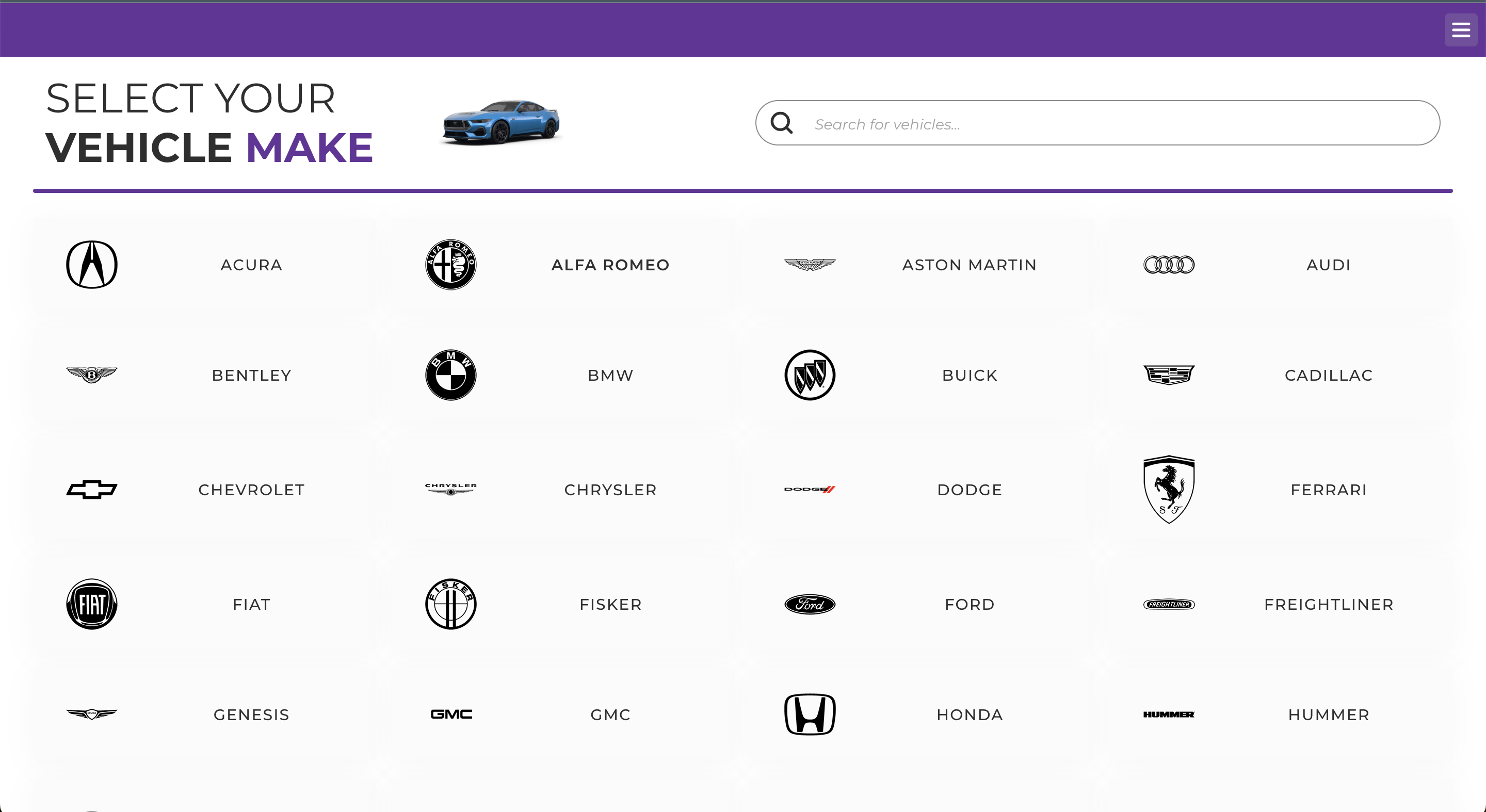
Changes the home page layout. Accepted values: "lookup" (compact search bar), "segment_selection" (segment picker tiles), "vehicle_make_selection" (starts directly on vehicle make selection). |
| onStartAlertContent Optional |
string | null |
HTML string displayed in a dismissable alert bubble when the app first loads. Useful for announcements or terms of service. |
| customStyleSheet Optional |
string | null |
Absolute URL of a CSS file that is injected into the app iframe. Use this to override colors, fonts, or component styles. |
| googleAnalyticsKey Optional |
string | null |
Your GA4 (G-XXXXXXX), Universal Analytics (UA-XXXXX-X), or GTM (GTM-XXXXXXX) tracking ID. This is applied in addition to any key configured in the AutoSync portal. |
| scrollBar Optional |
boolean | false |
Show the browser scrollbar inside the iframe. When false (default), the iframe takes the full viewport height without an internal scrollbar. |
| shrink Optional |
boolean | false |
When false (default) the container is sized to fill the viewport height. Set true to let the container take its height from your own CSS instead of forcing full-viewport height. |
| adaptiveHeight Optional |
boolean | false |
Grow the iframe to fit its content instead of scrolling internally. With false (default) the iframe is sized to the host page's viewport height and scrolls inside itself. With true the iframe grows as the content grows and your page scrolls, so the visualizer reads as one continuous part of the page. Ignored in widget mode. |
| defaultShoppingTypeOnVehicle Optional |
string | null |
What the product list sells when a vehicle is loaded and the URL does not say. One of "wheels", "tires", "packages" (case-insensitive). "packages" requires both wheels and tires to be enabled. A visualizer_shopping_type in the deep link wins over this. |
| disableQuoteForm Optional |
boolean | false |
When true, the built-in quote/checkout form is skipped. Use together with onEvent to push products to an external cart instead. |
| onEvent Optional |
function | null |
Callback invoked by the visualizer on key interactions. Receives a single object { event, data }. See the Events section for all emitted events. |
| widget Optional |
boolean | object | false |
Turns this instance into a compact widget: a small lookup bar sits inline in your page, and
completing a search expands it to a full-screen overlay over the host page — or leaves your
page entirely, when redirectUrl is set.
Pass true to take every default, or an object to choose:
Each one is described in full in its own row below. Widget mode decides two other options for you. homeStyle is forced
to 'lookup' whatever you pass, and adaptiveHeight is ignored — the
compact bar sizes itself to its own content, and the expanded overlay always fills the screen.
widget: { vehiclesLookup: true, redirectUrl: 'https://example.com/wheels' }
|
| widget.sizesLookup Optional |
boolean | false* |
Show the "Shop by Size" tab inside the widget. *If none of the three lookup flags are set, all three default to true. |
| widget.brandsLookup Optional |
boolean | false* |
Show the "Shop by Brand" tab inside the widget. |
| widget.vehiclesLookup Optional |
boolean | false* |
Show the "Shop by Vehicle" tab inside the widget. |
| widget.redirectUrl Optional |
string | null |
When set, searching in the widget navigates the host page to this URL instead of
opening the overlay. Use it when the widget is a teaser — on a home page, say — and the full
visualizer lives somewhere else.
The search is appended as a deep link, so the destination reads: https://example.com/wheels?1748…/#/autosync-visualizer/visualizer?wheels&wheel_size=20x9(the number is a cache-buster; an existing ? on your URL is respected).
That destination page must embed the visualizer itself, otherwise nothing reads the deep link and the user simply lands on a page with no selection. The homeSearch event still fires before the navigation, so you can intercept it and
route the user yourself instead.
|
| widget.styles Optional |
string | null |
Raw CSS code (not a URL) applied only to the widget's compact view. Inspect the widget markup to find the classes you want to override. |
| widget.disableLoadFromUrl Optional |
boolean | false |
When true, the widget ignores any AutoSync share URL parameters and always starts with a fresh, empty state. Prevents shared links from pre-loading a vehicle or product inside this instance's widget. |
Events (onEvent)
When onEvent is configured, the visualizer calls it with an object
{event: string, data: object} at specific points in the user flow.
Fired when the user submits the cart — either after filling in the built-in quote form, or, when disableQuoteForm: true, the moment the cart's Buy / Add to cart / Request a quote button is clicked. With the form disabled this event is the sole integration point for your external cart.
new Autosync({
  id: 'autosync-visualizer',
  key: 'YOUR_API_KEY',
  disableQuoteForm: true,
  onEvent: function({ event, data }) {
    if (event === 'submitQuote') {
      console.log('Cart submitted:', data);
      // data.wheels   → array of wheel objects
      // data.tires    → array of tire objects
      // data.vehicle  → selected vehicle
      // data.services → array of cart-level services
      // data.client   → contact details from the built-in form
      myCart.addItems(data);
    }
  }
});
Top-level keys
A key is only present when it has content. Check before reading it — a wheels-only cart has no data.tires, and data.client is absent whenever the built-in form was skipped.
| Key | Type | Present when |
|---|---|---|
| client | object | The built-in quote form was filled in. Absent with disableQuoteForm: true. |
| vehicle | object | A vehicle was selected. |
| wheels | array | At least one wheel is in the cart. |
| tires | array | At least one tire is in the cart. |
| services | array | Services are configured on your key and at least one was selected. |
data.client
{
  name: String,                  // first name
  lastName: String,
  email: String,
  phone: String,
  address: String,
  message: String,
  storeLocationId: Number,       // location chosen in the cart, from the portal
  storeLocationAddress: String
}
data.vehicle
{
  id: Number,
  make: String,
  model: String,
  submodel: String,
  year: Number,
  body: String,                  // e.g. "Sedan"
  bed: String,                   // trucks only
  type: String,                  // e.g. "SUV", "CAR", "VAN"
  isDrw: Boolean,                // dual rear wheel (dually)
  boltCircle: Number,
  lugCount: Number,
  bore: Number,
  boreRear: Number,              // null when the same as the front
  loadRating: String,
  loadRatingRear: String,
  maxWheelLoad: Number,
  raceTires: Boolean,
  staggeredDiameter: Boolean,    // front/rear take different diameters
  staggeredWidth: Boolean        // front/rear take different widths
}
data.wheels[]
{
  // identity
  id: Number,
  partNumber: String,            // manufacturer part number
  styleId: Number,
  externalProductId: String,     // your own ID — see the note below
  gtin: String,
  upc: String,

  // naming and appearance
  brand: String,
  model: String,
  submodel: String,
  color: String,
  shortColor: String,
  finish: String,
  shortFinish: String,
  accent: String,
  faceStyle: String,
  structure: String,
  material: String,
  orientation: String,

  // sizing and fitment
  diameter: Number,
  width: Number,
  offset: Number,
  bore: Number,
  boltCircle1: Number,
  boltCircle2: Number,
  lugCount: Number,
  lugType: String,
  exposedLugs: Boolean,
  lipSize: Number,
  bsm: Number,                   // back spacing measurement
  loadRating: Number,
  weight: Number,
  cap: String,
  position: String,
  side: String,

  // commerce
  price: Number,
  quantity: Number,
  inventory: Number,
  services: [ { id: Number, quantity: Number } ],

  // imagery
  img0001: String, img0002: String, img0003: String, img1001: String
}
data.tires[]
{
  // identity
  id: Number,
  partNumber: String,
  externalProductId: String,
  ean: String,
  asin: String,
  gmCode: String,
  traCode: String,

  // naming
  brand: String,
  model: String,
  displayName: String,           // e.g. "235/40R19 XL All Season Ev"
  size: String,

  // sizing
  sectionWidth: Number,
  aspectRatio: Number,
  rimDiameter: Number,
  metricRimDiameter: Number,
  inchWidth: Number,
  diameter: Number,
  overallDiameter: Number,
  overallWidth: Number,
  treadWidth: Number,
  treadDepth: Number,
  loadedWidth: Number,
  staticLoadedRadius: Number,
  rollingCircumference: Number,
  measuringRimWidth: Number,
  approvedRimWidthMin: Number,
  approvedRimWidthMax: Number,
  minDualSpacing: Number,

  // ratings
  loadRating: String,
  loadRange: String,
  loadCapacitySingle: Number,
  loadCapacityDual: Number,
  speedRating: String,
  starRating: String,
  plyRating: String,
  maxInflationPressure: Number,
  runFlat: Boolean,
  sidewall: String,              // e.g. "BSW"
  weight: Number,

  // commerce
  price: Number,
  quantity: Number,
  inStock: Boolean,
  services: [ { id: Number, quantity: Number } ],

  // imagery
  imgAngle: String, imgFront: String, imgSide1: String
}
data.services[]
Cart-level services. The per-product services arrays above reference these by id.
{
  id: Number,
  name: String,                  // label shown to the user
  cost: Number                   // as displayed, and as counted into the total
}
externalProductId is your product ID, not ours. It is only populated
once External Product IDs is enabled on your API key and you have supplied a feed mapping your
catalogue to AutoSync products. Until then, match on partNumber or id.
disableQuoteForm: true, only mandatory services reach the event —
the user never sees the screen where optional ones are chosen.
Fired when the user presses Search on the lookup home page — that is, with
homeStyle: 'lookup' or in widget mode. It fires before the visualizer
navigates, so it is the hook for sending the user somewhere else instead.
data is the query string of the route the widget is about to open, parsed into an object.
Which keys appear depends on the tab the user searched from, and every value is a string —
a bare flag such as wheels arrives as the string "true", not a boolean.
| Searched from | Keys in data | Example |
|---|---|---|
| Vehicle tab | vehicle_id | { vehicle_id: '123456' } |
| Size tab — wheels | wheels, wheel_size, wheel_size_rear | { wheels: 'true', wheel_size: '20x9' } |
| Size tab — tires | tires, tire_size, tire_size_rear | { tires: 'true', tire_size: '285/55R20' } |
| Brand tab | wheels or tires, plus brand | { wheels: 'true', brand: 'Fuel Off-Road' } |
The _rear keys only appear when the user picked a staggered (different front/rear) size.
onEvent: function({ event, data }) {
  if (event === 'homeSearch') {
    if (data.vehicle_id) {
      window.location.href = '/shop/vehicle/' + data.vehicle_id;
    } else if (data.wheel_size) {
      window.location.href = '/shop/wheels?size=' + data.wheel_size;
    }
  }
}
Writing a handler that keeps working
- Switch on
event, and ignore what you do not know. More events will be added over the same callback; a handler that assumes it only ever receivessubmitQuotewill misfire when they arrive. - Check keys before reading them.
data.tires,data.servicesanddata.clientare all absent when empty. - Catch your own errors. An exception thrown inside the callback surfaces in the middle of the user's checkout.
- Keep it light. The callback runs on the user's device, most often a phone. Hand heavy work to your server.
- Give feedback. If your handler redirects or posts to a backend, show the user something while it happens.
- Send only what you need. The payload carries customer contact details; treat the endpoint you post it to accordingly.
submitQuote and homeSearch are the only events emitted today.
The handler must be supplied at construction — it cannot be attached or swapped afterwards — and because it is a
function it can only be passed in code, never through a URL parameter.
Embedded Mode
The standard embed renders the visualizer in a fixed-height container that fills your layout. The iframe inherits the container's dimensions. The previews below are live, running instances.
Full-page embed
Fills the viewport — ideal for a dedicated wheels/tires page<!-- 1. Container -->
<div
id="autosync-visualizer"
style="width:100%; height:100vh;"
></div>
<!-- 2. Script -->
<script
src="https://vvs.autosyncstudio.com/js/Autosync.js"
></script>
<!-- 3. Initialize -->
<script>
new Autosync({
id: 'autosync-visualizer',
key: 'YOUR_API_KEY'
});
</script>
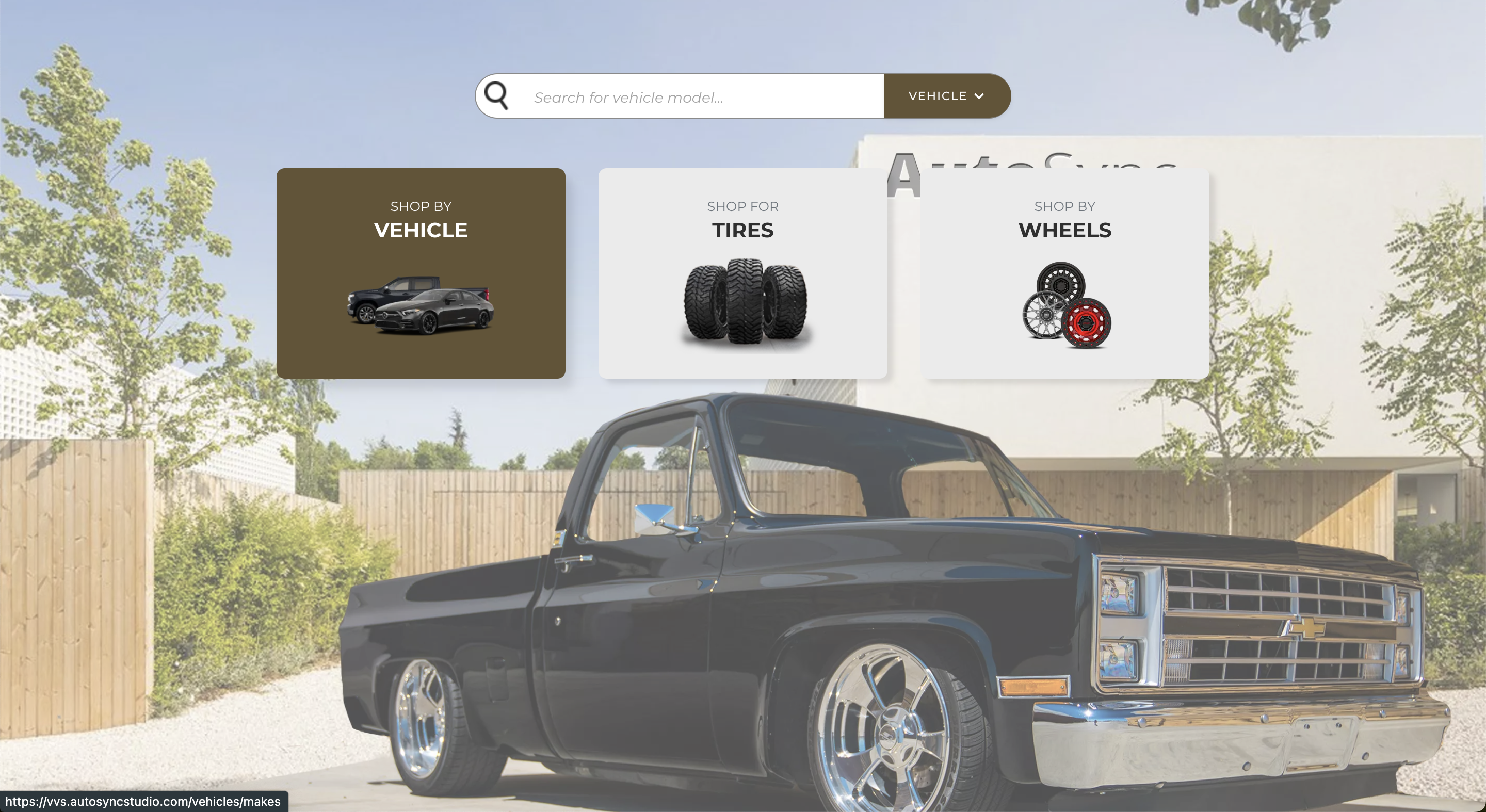
Embed restricted to wheels only
Only the Wheels segment is visiblenew Autosync({
id: 'autosync-visualizer',
key: 'YOUR_API_KEY',
productSegment: 'wheels'
});
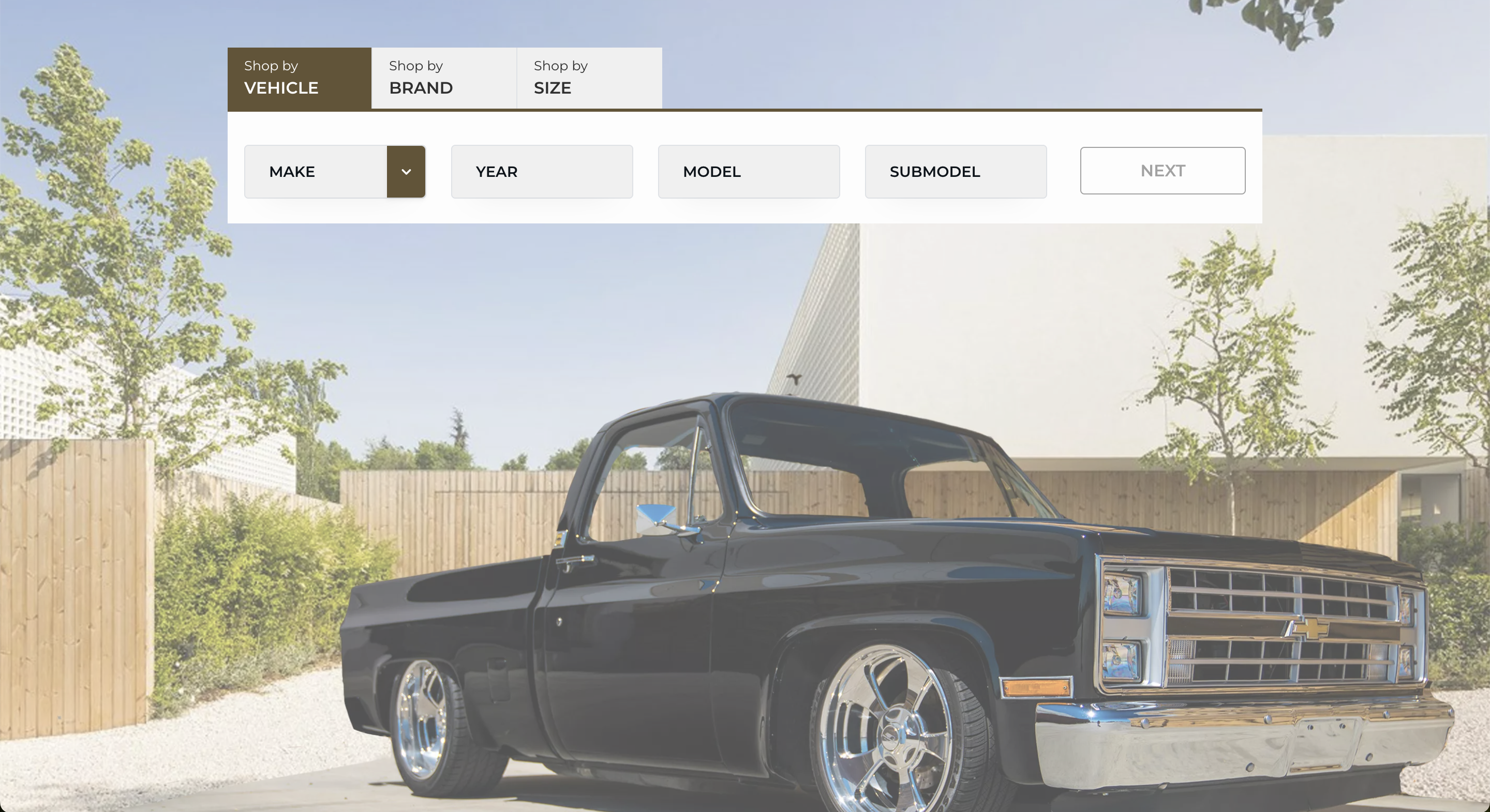
Embed starting on vehicle selection
Home page opens directly on the vehicle make gridnew Autosync({
id: 'autosync-visualizer',
key: 'YOUR_API_KEY',
homeStyle: 'vehicle_make_selection'
});
Widget Mode
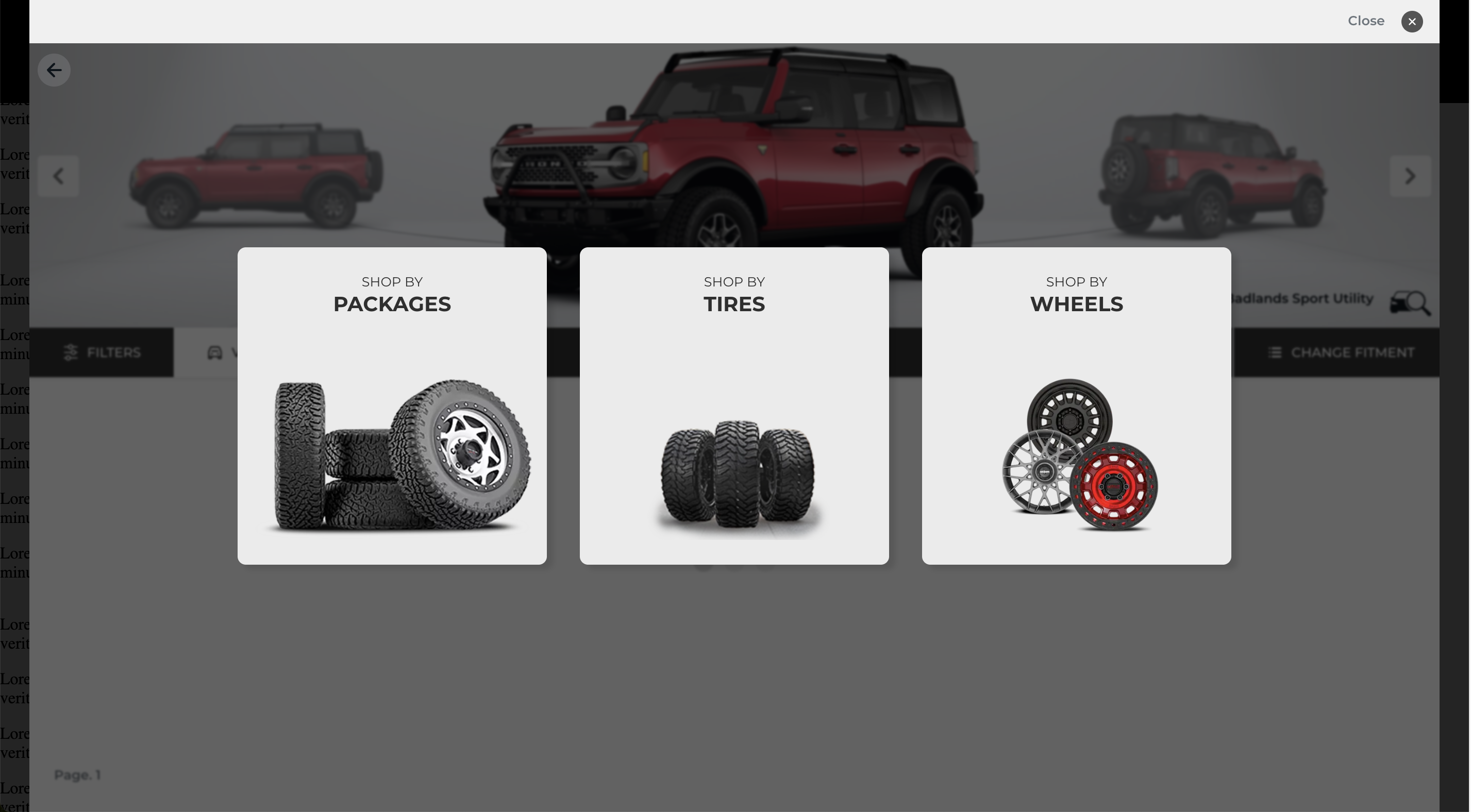
Widget mode renders a compact lookup bar on the page. When the user completes a search
(by vehicle, brand, or size) the visualizer expands to a full-screen overlay — or, if
widget.redirectUrl is set, the user is sent to another page.
Basic widget
All three lookup tabs enabled by default<div id="autosync-visualizer" style="width:100%;"></div>
<script src="https://vvs.autosyncstudio.com/js/Autosync.js"></script>
<script>
new Autosync({
id: 'autosync-visualizer',
key: 'YOUR_API_KEY',
widget: true
});
</script>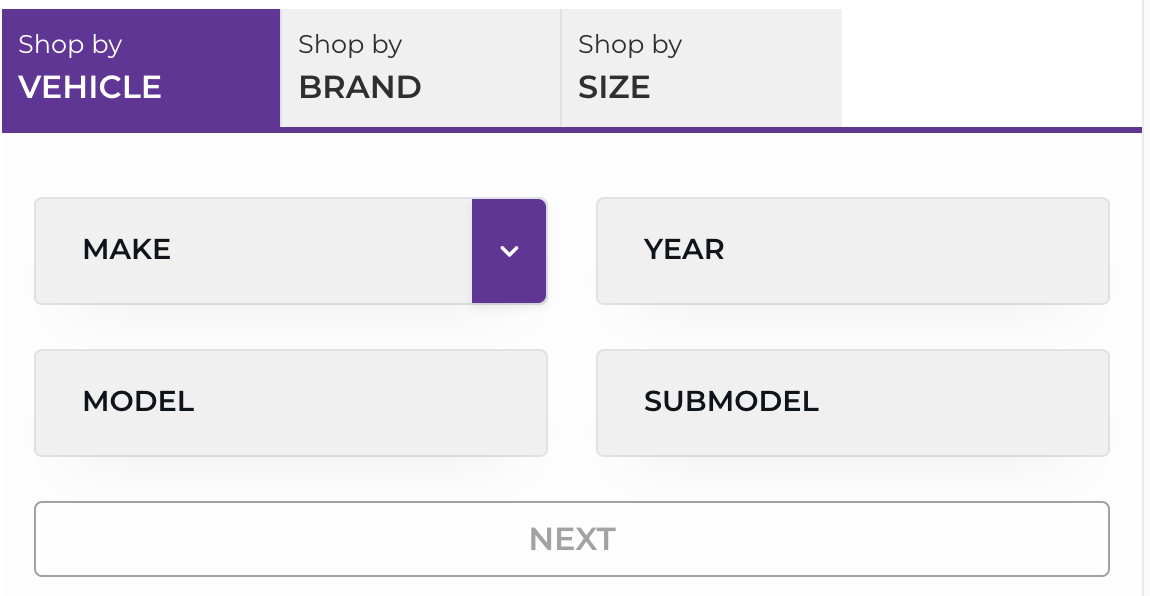
Widget — vehicle lookup only
Only the "Shop by Vehicle" tab is shownnew Autosync({
id: 'autosync-visualizer',
key: 'YOUR_API_KEY',
widget: {
vehiclesLookup: true,
brandsLookup: false,
sizesLookup: false
}
});
Widget with redirect
Sends the user to a separate page instead of opening an overlay// Place the widget on any page (e.g. home page)
new Autosync({
id: 'autosync-visualizer',
key: 'YOUR_API_KEY',
widget: {
// User is sent here after searching; the app
// on that page receives the search as URL params
redirectUrl: 'https://yoursite.com/shop'
}
});
Widget — disable URL state loading
Always starts fresh, ignoring AutoSync share links// Useful when the widget lives on a high-traffic page
// and you don't want share links to pre-load state
new Autosync({
id: 'autosync-visualizer',
key: 'YOUR_API_KEY',
widget: {
disableLoadFromUrl: true
}
});Widget with custom styles
Apply CSS only to the compact widget bar, not the full visualizernew Autosync({
id: 'autosync-visualizer',
key: 'YOUR_API_KEY',
widget: {
// Raw CSS applied only to the widget compact view
styles: `
.autosync-visualizer { background-color: #f8f9fa; }
.lookup-tabs { grid-template-columns: repeat(3, 1fr) !important; }
`
},
// Stylesheet URL applied to the full-screen visualizer
customStyleSheet: 'https://yoursite.com/visualizer-theme.css'
});External Cart Integration
Replace the built-in quote form with your own cart by combining
disableQuoteForm and onEvent.
By default, when a user clicks Submit Quote the visualizer shows a contact form
and sends the order to AutoSync. Setting disableQuoteForm: true suppresses this
form; the cart checkout button instead fires the submitQuote event on your
onEvent callback, giving you the full order data to push to your own cart system.
disableQuoteForm should always be paired with onEvent.
Without onEvent, the cart button will still fire but the order data is silently
discarded — users will see no confirmation and the cart will appear to do nothing.
Push products to an external cart
new Autosync({
id: 'autosync-visualizer',
key: 'YOUR_API_KEY',
// 1. Suppress the built-in quote form
disableQuoteForm: true,
// 2. Receive the cart data and push to your system
onEvent: function({ event, data }) {
if (event !== 'submitQuote') return;
// data.wheels → array of selected wheels
data.wheels?.forEach(function(wheel) {
myCart.add({
id: wheel.externalProductId || wheel.id,
name: wheel.brand + ' ' + wheel.model,
qty: wheel.quantity,
price: wheel.price
});
});
// data.tires → array of selected tires
data.tires?.forEach(function(tire) {
myCart.add({
id: tire.externalProductId || tire.id,
name: tire.brand + ' ' + tire.model,
qty: tire.quantity,
price: tire.price
});
});
// Redirect to cart
window.location.href = '/cart';
}
});Cart data structure
The data object passed to onEvent on a submitQuote event contains
the keys below. See Events for the full field list of each one.
wheels— array of selected wheel objects (brand, model, partNumber, diameter, width, finish, price, quantity, externalProductId, …)tires— array of selected tire objects (brand, model, size, rimDiameter, price, quantity, externalProductId, …)services— array of add-on services (id, name, cost)vehicle— the selected vehicle (year, make, model, submodel, id)client— contact details from the built-in quote form. Absent entirely whendisableQuoteForm: true, since that form never runs
Product Segments
Use productSegment to restrict which product categories are shown in this
instance, independently of what is enabled on your API key.
Accepted values are a comma-separated string (or an array) of one or more of:
wheels— wheel productstires— tire productsvehicles— vehicle browsing (cannot be used alone)rebates— rebates, where enabled on your key
Which segments actually appear is the intersection of this list and the segments enabled on your API key. When productSegment is omitted, all segments enabled on your key are shown.
// Wheels only
new Autosync({
  id: 'autosync-visualizer',
  key: 'YOUR_API_KEY',
  productSegment: 'wheels'
});
// Wheels and tires
new Autosync({
id: 'autosync-visualizer',
key: 'YOUR_API_KEY',
productSegment: 'wheels,tires'
});
// A single segment automatically skips the segment-selection home page
new Autosync({
id: 'autosync-visualizer',
key: 'YOUR_API_KEY',
productSegment: 'tires' // goes straight to tire brands
});Start Page
Force the visualizer to open on a specific page rather than the default home screen.
startPage accepts a path string. Segment shortcuts are automatically
expanded to their canonical routes:
"wheels"→ opens the wheels brand list"tires"→ opens the tires brand list"vehicles"→ opens the vehicle make selection"home"→ explicit home page- Any full path, optionally with query params:
"/wheels/brands?brand=Fuel" "/visualizer?…"— opens straight into the builder with a vehicle, product and filters already applied. See Deep Links for every parameter.
// Jump straight to wheels brands
new Autosync({
  id: 'autosync-visualizer',
  key: 'YOUR_API_KEY',
  startPage: 'wheels'
});

// Jump to a specific brand
new Autosync({
  id: 'autosync-visualizer',
  key: 'YOUR_API_KEY',
  startPage: '/wheels/brands?brand=Fuel%20Off-Road'
});

// Jump directly to vehicle selection
new Autosync({
  id: 'autosync-visualizer',
  key: 'YOUR_API_KEY',
  startPage: 'vehicles'
});Deep Links
Open the visualizer with a vehicle, a product and a set of filters already applied,
by passing /visualizer plus a query string as your startPage.
Everything below is a query parameter on the /visualizer path. Build the
path you want, then hand the whole thing to startPage. The same parameters
are what the visualizer's own Share button produces, so any shared link
can be pasted straight into startPage.
new Autosync({
  id: 'autosync-visualizer',
  key: 'YOUR_API_KEY',
  // A 2024 F-150, showing wheels, with a specific style and size already picked
  startPage: '/visualizer?wheels'
           + '&visualizer_view=wheels&visualizer_segment=wheels&visualizer_shopping_type=wheels'
           + '&vehicle_id=123456'
           + '&wheel_style_id=7890&wheel_size=20x9'
           + '&filter_wheels_short_color=Black'
});visualizer_segment=tires is ignored if tires are not enabled on your API key
or are excluded by productSegment, and the vehicle parameters do nothing without
a vehicle_id.
Layout
| Parameter | Values | What it does |
|---|---|---|
| visualizer_view | wheels | tires |
Which product the vehicle preview is focused on. Case-insensitive. |
| visualizer_segment | wheels | tires |
Which product list is shown below the preview. |
| visualizer_shopping_type | wheels | tires | packages |
What the product list sells. packages only applies when both wheels and tires are available to the instance. |
Vehicle
| Parameter | Values | What it does |
|---|---|---|
| vehicle_id | number | Load a vehicle by its AutoSync ID. Every other vehicle parameter below is ignored unless this one is present. |
| vehicle_color_id | number | Load the vehicle in a specific paint colour. |
| vehicle_query | string | Free-text narrowing of which variant is returned for that vehicle ID — for example a trim name. Be as specific as you can; the first match is used. |
| ride_height | number | Suspension lift or drop for the rendered vehicle, where that vehicle supports it. Check availability in the AutoSync portal. |
| use_offroad_thread | true | false |
Render the vehicle with the off-road tire tread instead of the default. |
| vov_tire_diameter | number | Override the tire diameter used when compositing the vehicle image. |
| force_staggered | true | false |
Force staggered fitment, so front and rear take different sizes. |
Segment and brand
| Parameter | Values | What it does |
|---|---|---|
| wheels | flag — no value needed | Open on wheels. Combine with brand or a size to narrow further. |
| tires | flag — no value needed | Open on tires. |
| brand | string | Preselect a brand for whichever of wheels / tires is set. When present it takes priority over filter_wheels_brand. |
Selecting a specific product
| Parameter | Values | What it does |
|---|---|---|
| wheel_style_id | number | Load a wheel style. Pair with wheel_id or wheel_size to pick the exact size within that style. |
| wheel_id | number | Exact front wheel. Only applied alongside wheel_style_id. |
| wheel_rear_id | number | Exact rear wheel, for staggered fitments. Only applied alongside wheel_style_id. |
| wheel_outer_id | number | Exact outer wheel, for dually (DRW) vehicles. Only applied alongside wheel_style_id. |
| wheel_pn | string | Load a wheel by manufacturer part number instead of an ID. Works on its own — no wheel_style_id needed. |
| wheel_rear_pn | string | Rear wheel by part number. |
| wheel_outer_pn | string | Outer (dually) wheel by part number. |
| tire_model_id | number | Load a tire model. Pair with tire_id to pick the exact size. |
| tire_id | number | Exact front tire. Only applied alongside tire_model_id. |
| tire_rear_id | number | Exact rear tire. Only applied alongside tire_model_id. |
| tire_pn | string | Load a tire by manufacturer part number. Works on its own. |
| tire_rear_pn | string | Rear tire by part number. |
Sizes and free-text search
| Parameter | Values | What it does |
|---|---|---|
| wheel_size | 20x9 or 5x114.3|20x9 |
Diameter x width. An optional lugCount x boltCircle | prefix also constrains the bolt pattern. |
| wheel_size_rear | 20x10 |
Rear diameter x width, for staggered fitments. The bolt-pattern prefix is not read here. |
| wheel_query | string | Free-text search; lists only wheels matching the description. |
| tire_size | 285/55R20 |
Full tire size. Section width, aspect ratio, diameter, inch width and rim diameter are all derived from it. |
| tire_size_rear | 305/50R20 |
Rear tire size, for staggered fitments. |
| tire_query | string | Free-text search; lists only tires matching the description. |
Wheel filters
| Parameter | Values | What it does |
|---|---|---|
| filter_wheels_brand | string | Brand. Ignored when the plain brand parameter is also present. |
| filter_wheels_diameter | number | Diameter. |
| filter_wheels_diameter_2 | number | Diameter, rear. |
| filter_wheels_width | number | Width. |
| filter_wheels_width_2 | number | Width, rear. |
| filter_wheels_offset | number | Offset. |
| filter_wheels_offset_2 | number | Offset, rear. |
| filter_wheels_segment_tag | string | Segment tag. |
| filter_wheels_short_color | string | Colour. |
| filter_wheels_short_finish | string | Finish. |
| filter_wheels_vehicle_type_tag | string | Vehicle type tag. |
Tire filters
| Parameter | Values | What it does |
|---|---|---|
| filter_tires_brand | string | Brand. |
| filter_tires_aspect_ratio | number | Aspect ratio. |
| filter_tires_aspect_ratio_2 | number | Aspect ratio, rear. |
| filter_tires_section_width | number | Section width. |
| filter_tires_section_width_2 | number | Section width, rear. |
| filter_tires_diameter | number | Overall diameter. |
| filter_tires_diameter_2 | number | Overall diameter, rear. |
| filter_tires_inch_width | number | Inch width. |
| filter_tires_inch_width_2 | number | Inch width, rear. |
| filter_tires_rim_diameter | number | Rim diameter. |
| filter_tires_rim_diameter_2 | number | Rim diameter, rear. |
| filter_tires_segment | string | Segment tag. |
| filter_tires_speed_rating | string | Speed rating. |
| filter_tires_speed_rating_2 | string | Speed rating, rear. |
| filter_tires_vehicle_type_tag | string | Vehicle type tag. |
current_visualizer_vehicle_angle was removed —
the preview angle is no longer settable from the URL. Links that still carry it keep working;
the parameter is simply ignored.
Home Style
Change how the visualizer's home page looks and behaves.
| Value | Description |
|---|---|
lookup |
Displays a compact vehicle / brand / size lookup bar. Same as the widget home view but embedded inline. Ideal for product pages where the user should start with a vehicle or brand search. |
segment_selection |
Shows large clickable tiles for each enabled product segment (Wheels, Tires…). The user picks a segment before browsing. |
vehicle_make_selection |
Skips the home screen entirely and opens directly on the vehicle make selection grid. Best when your audience always shops by vehicle. |
homeStyle on the instance, the
visualizer falls back to the Home Page Style set on your API key under
Visualizer Configuration. Setting it here overrides the portal for this embed only.
widget forces
homeStyle to 'lookup' whatever you set here, and whatever the portal says —
the widget is the lookup bar, so there is no other home page for it to show. Pair
'segment_selection' or 'vehicle_make_selection' with an ordinary embed instead.
See Widget Mode.
new Autosync({
  id: 'autosync-visualizer',
  key: 'YOUR_API_KEY',
  homeStyle: 'lookup'         // or 'segment_selection' or 'vehicle_make_selection'
});Start Alert
Display a custom HTML message in a dismissable popup when the visualizer first loads. Useful for promotions, disclaimers, or terms-of-service notices.
new Autosync({
  id: 'autosync-visualizer',
  key: 'YOUR_API_KEY',
  onStartAlertContent: `
    <h4>🔥 Summer Sale — Up to 30% off!</h4>
    <p>Use code <strong>SUMMER30</strong> at checkout.</p>
  `
});Custom Styles
Restyle the visualizer to override colors, fonts, spacing, and component styles. Two separate options target the full visualizer and the widget bar independently.
customStyleSheet
A URL to a CSS file, injected inside the full visualizer iframe (both embedded and widget full-screen overlay modes). Point it to any publicly accessible CSS URL.
widget.styles
Raw CSS code (not a URL) applied only inside the widget's compact bar — the small lookup bar that sits on the page before the user clicks through. Use this when the widget bar appears on a page with a different color scheme to the page that hosts the full visualizer.
new Autosync({
  id: 'autosync-visualizer',
  key: 'YOUR_API_KEY',
  widget: {
    // Raw CSS applied only to the compact widget bar
    styles: `
      .autosync-visualizer { background-color: #f8f9fa; }
    `
  },

  // A stylesheet URL applied to the full visualizer overlay
  customStyleSheet: 'https://yoursite.com/css/visualizer.css'
});Google Analytics
Pass your own tracking ID so the visualizer sends events to your analytics property.
The googleAnalyticsKey option accepts any of the following formats:
- GA4 —
G-XXXXXXXXXX - Universal Analytics —
UA-XXXXXX-X - Google Tag Manager —
GTM-XXXXXXX
This key is applied in addition to (not instead of) any key configured in the AutoSync portal. GTM containers are loaded dynamically; GA4 and UA IDs are sent to the existing gtag instance.
// GA4
new Autosync({
  id: 'autosync-visualizer',
  key: 'YOUR_API_KEY',
  googleAnalyticsKey: 'G-XXXXXXXXXX'
});

// Google Tag Manager
new Autosync({
  id: 'autosync-visualizer',
  key: 'YOUR_API_KEY',
  googleAnalyticsKey: 'GTM-XXXXXXX'
});
Using your own dashboard
Instead of passing googleAnalyticsKey in code, you can set the Measurement ID once in the
AutoSync portal and have every embed on that key pick it up: open API in the sidebar,
open your key's configuration page, find Visualizer Configuration, and paste the ID into
Measurement ID. A googleAnalyticsKey passed to the constructor overrides it
for that one instance.
AutoSync tracks the visualizer in its own property regardless. You can request access to that dashboard from AutoSync staff.
User properties
Sent once per session as GA4 user_properties, describing how this embed is configured.
We use them to see which settings are worth investing in.
| Property | Meaning |
|---|---|
| visualizer_key | The API key this embed is running under. |
| visualizer_ga4_key | The Measurement ID the client supplied, or none. |
| utm_source | The host page's domain. AutoSync's own staging page reports AutoSync Stage. |
Events
Every event the visualizer emits. They all carry event_category: "AutoSync" and a
human-readable event_label on top of the attributes listed here.
| Event | Attributes | When it fires |
|---|---|---|
| as_page_view | page_parent_location, page_location, page_title |
Every page the user opens. page_parent_location is the URL of your page hosting the embed. |
| as_instance_configuration | Every option this instance booted with | Once per load, as soon as the API key validates. Lets us see which embed settings are actually in use. The internal identifier is stripped out. |
| as_search_tool_query | search_query, search_type, search_results, plus search_makes (vehicles) or search_brands (wheels, tires) |
The user typed into the home search tool. search_type is vehicles, wheels or tires. |
| as_search_tool_selection | search_type plus, depending on what was picked: make_name · vehicle_make, vehicle_model, vehicle_year, vehicle_body, vehicle_name · brand_name · item_brand, item_model, item_style_id (wheels) · item_brand, item_model, item_model_id, item_id (tires) |
The user picked one of the search results. |
| as_select_make | make_name |
A make was chosen on the vehicle makes page. |
| as_select_brand | brand_name, brand_type |
A brand was chosen on the wheel or tire brands page. brand_type says which. |
| as_select_vehicle | vehicle_id, vehicle_make, vehicle_model, vehicle_submodel, vehicle_year, vehicle_type, vehicle_body, vehicle_color, vehicle_drw, vehicle_name |
A vehicle was loaded into the visualizer. |
| as_change_vehicle_color | vehicle_id, vehicle_name, vehicle_color |
The user changed the vehicle's paint colour. |
| as_select_wheel | item_id, item_style_id, item_name, item_brand, item_model, item_color, item_finish, item_accent, item_diameter, item_diameter_rear |
A wheel was selected. Only deliberate selections are tracked, not ones restored from a link. |
| as_select_tire | item_id, item_name, item_brand, item_model |
A tire was selected. |
| as_select_filter | filter_name, filter_value |
A product filter was applied — size, colour, brand and so on. |
| as_show_wheel_view as_show_tire_view as_show_vehicle_view |
— | The preview was switched to the wheel, tire or vehicle view. |
| as_start_request_for_quote | — | The user opened the quote form. |
| as_request_for_quote | Internal form: location_id, location_name, location_city, location_state, location_country, location_zip, vehicle_id, vehicle_year, vehicle_make, vehicle_model, vehicle_submodel, vehicle_body, vehicle_dually, vehicle_trim, vehicle_bp, vehicle_load_rating, products, services.Hand-off to your own system: type, url, requestType, vehicle_id, vehicle_make, vehicle_model, vehicle_year, vehicle_submodel, vehicle_body, vehicle_drw. |
A quote was submitted. type is onEvent when it went to your callback, Webform when it was posted to a configured URL. |
| share | wheel_brand, wheel_name, wheel_model, wheel_finish, wheel_color, wheel_accent, wheel_diameter, wheel_diameter_rear, wheel_width, wheel_width_rear, wheel_style_id, wheel_id, tire_brand, tire_name, tire_id, tire_brand_rear, tire_name_rear, tire_id_rear, plus the vehicle_* set |
A share button was used. Note this one is named share, not as_share. |
as_share, as_request_location, as_show_wheel_details,
as_show_tire_details, as_select_favorite, as_remove_favorite and
as_change_page_size. Nothing fires them today — do not build reports on them.
The user properties scroll_into_view, listing_vehicles_by_year and
pagination_size are gone too.